
It never turns a sign-in into keys
Console Hopper keeps its promise not to read credentials. Creds adds its buttons to the page Console Hopper builds, and the two never send each other messages.
Companion extension for Console Hopper
Console Hopper Creds adds a Keys button to every role on the AWS SAML sign-in page. One click trades the page's own sign-in for temporary credentials, ready to paste as environment variables, a credentials profile or whatever your tools read.
Open source (MIT)Nothing storedTalks only to AWS
Plenty of organisations don't allow turning a console sign-in into CLI keys. Console Hopper is used in those places too, so the keys live in an extension of their own.
Console Hopper keeps its promise not to read credentials. Creds adds its buttons to the page Console Hopper builds, and the two never send each other messages.
Creds has its own extension id, so an organisation that must not have it blocks that id and keeps Console Hopper. Where it is installed, Chrome policy can still switch it off.
Keys come only for roles your identity provider already lists, for no longer than each role allows. The AWS CLI accepts the same SAML response; stopping key issuance is a job for AWS-side policy.
Creds builds on the role picker Console Hopper draws, so it needs Console Hopper 1.9.0 or later.
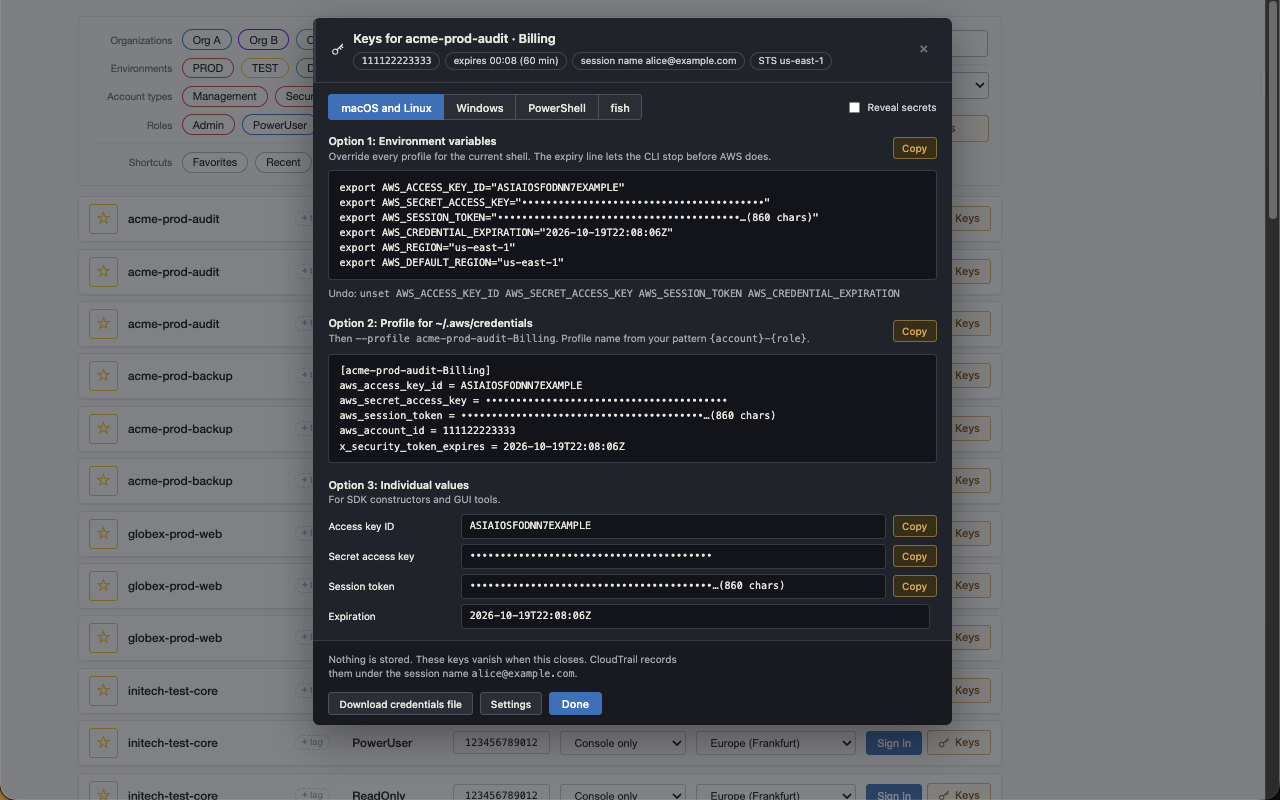
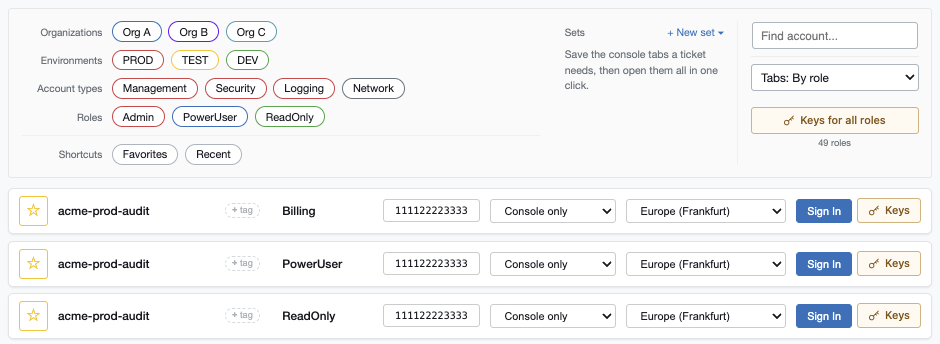
Keys sits next to Sign In on each role row. Click it, and AWS's token service returns that role's temporary keys, shown in a dialog on the same page.
Environment variables for four shells, a profile for ~/.aws/credentials and the individual values, side by side. Pick your shell and copy.
More formats are one click further:
aws configure setcredential_process JSON.envSecrets stay masked until you reveal them, and the expiry line lets the CLI stop before AWS does.
# Option 1: environment variables
export AWS_ACCESS_KEY_ID="ASIAIOSFODNN7EXAMPLE"
export AWS_SECRET_ACCESS_KEY="••••••••••••••••••••"
export AWS_SESSION_TOKEN="••••••••••…(860 chars)"
export AWS_CREDENTIAL_EXPIRATION="2026-10-19T22:08:06Z"
export AWS_REGION="eu-central-1"

# Option 2: profile for ~/.aws/credentials
[acme-prod-audit-Billing]
aws_access_key_id = ASIAIOSFODNN7EXAMPLE
aws_secret_access_key = ••••••••••••••••••••
aws_session_token = ••••••••••…(860 chars)Keys for all roles asks AWS for every role the picker shows, in parallel, and lists each one with its status and expiry.
{account}-{role} by default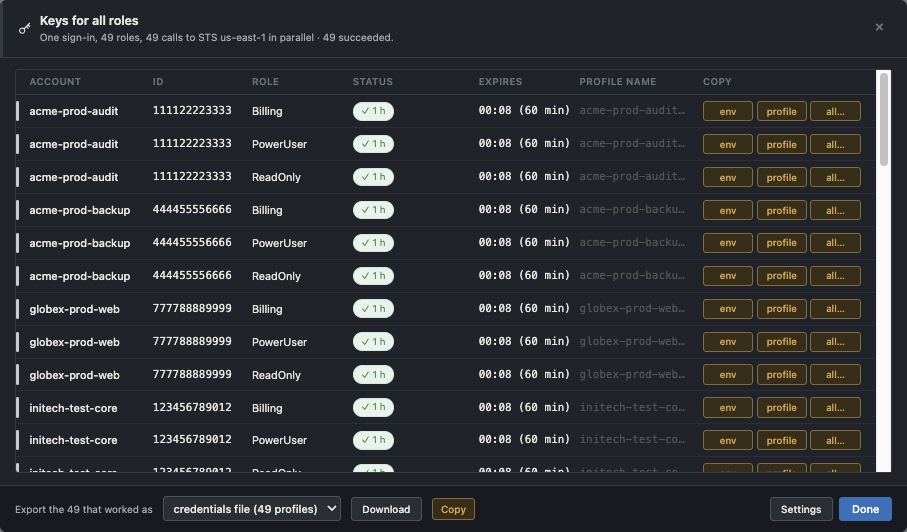
The sign-in page already holds the SAML response your identity provider issued. When you click Keys, Creds sends it, with the role you chose, to AWS's token service in the sign-in page's own region, and shows you what comes back.
signin.aws.amazon.comAssumeRoleWithSAMLgone when it closesNo server in between: the request goes from your browser to AWS, and nothing else is contacted.
Open Creds Settings from the end of Console Hopper's side menu, or from any Keys dialog.
Follow your identity provider's SessionDuration, or pick a fixed length from 15 minutes to 12 hours.
A pattern built from {account}, {accountId} and {role}; {account}-{role} by default.
For environment variables, profiles and the token service. Left empty, it's the sign-in page's own region.
Any format the built-in list lacks, with placeholders like {{accessKeyId}} and {{sessionToken}}.
The dialogs follow Console Hopper's own light or dark switch, not just your system theme.
The keys carry your sign-in's role session name, so CloudTrail records their calls under it, just as it does a console sign-in.
Creds runs only on the AWS SAML sign-in page and has no server of its own. The credentials it fetches are shown to you and are gone when the dialog closes.
The code is open source, so you can check every line.
signin.aws.amazon.com/saml and its regional hosts. No console pages, no other sites.AssumeRoleWithSAML request per role you ask for, and only when you click Keys. No telemetry, analytics or update checks.storage permission and the sign-in page itself. No cookies, no tabs, no access to other sites.Allowing Console Hopper never means allowing keys. Creds is a separate install you decide on separately.
Leave Creds off your extension allow-list, or block its extension id, jfccfpclemghippgnlpdkagfidlkmimm. Console Hopper keeps working exactly as before; Creds is the only part that turns a sign-in into keys.
What actually prevents key issuance is AWS-side policy: role trust policies, STS deny statements and sign-in resource policies. The SAML response passes through the browser either way, and the AWS CLI's assume-role-with-saml accepts it.
Where Creds is installed, set this in the extension's managed policy (Chrome's 3rdparty policy for its id):
{ "enabled": false }It then adds nothing to the sign-in page and never contacts AWS.
No account and no server. Your settings live in your browser.
Creds needs Console Hopper 1.9.0 or later, from the Chrome Web Store.
Install Console Hopper Creds from the Chrome Web Store. It's free.
Go through your identity provider. Every role on the AWS role picker now has a Keys button.
Use it within about five minutes of signing in; after that, AWS wants a fresh sign-in.
Rather build it yourself? The README on GitHub shows how.
No. It adds its buttons to the role picker Console Hopper builds, and reads the sign-in expiry Console Hopper marks on the page. Without Console Hopper 1.9.0 or later, it shows a short note instead of the Keys buttons.
No. Console Hopper works on its own, and you only need Creds if you want command-line keys from the same sign-in.
As long as your identity provider's SessionDuration asks for, or the length you set, from 15 minutes to 12 hours. A role can allow less; Creds then retries at 1 hour, then 15 minutes, and tells you which length it got.
AWS accepts a SAML sign-in page for only about five minutes after your identity provider issues it. Once that time is up, Console Hopper marks the page as expired and Keys greys out until you sign in again.
Only to your screen, and wherever you paste them. They're held in memory while the dialog is open and discarded when it closes. If you download a credentials file, that copy is yours to look after.
No. Like Console Hopper, it works on the AWS SAML sign-in page your identity provider (Okta, Microsoft Entra ID, ADFS, Ping and others) sends you to. The IAM Identity Center access portal has its own way to get keys.
Yes. It's published on the Chrome Web Store under its own id, jfccfpclemghippgnlpdkagfidlkmimm, so it goes on an allow-list or block list separately from Console Hopper. To switch it off where it's already installed, see For administrators.
No. Console Hopper Creds is an independent, open-source project under the MIT licence, and isn't affiliated with or endorsed by Amazon Web Services.

Install Console Hopper, add Creds, and every role on the AWS sign-in page comes with its keys.